| Problem: USB flash drive won’t format to full capacity I have a SanDisk Ultra 64GB micro USB flash drive. When I plugged it in to my pc, it recognized it as a blank drive and asked me to format it. When I did, it gave me a maximum of 200MB. I plugged it into my mac, and after formatting it as Fat, Fat 32, and exFat, my PC wouldn’t recognize it and offered to format it again, but at a maximum of 200MB. I couldn’t understand what was going on and it was a very frustrating experience. After scouring the net, I realized that this was a common problem with a solution that was not obvious. I found a solution that worked for me and hopefully it will work for you. | 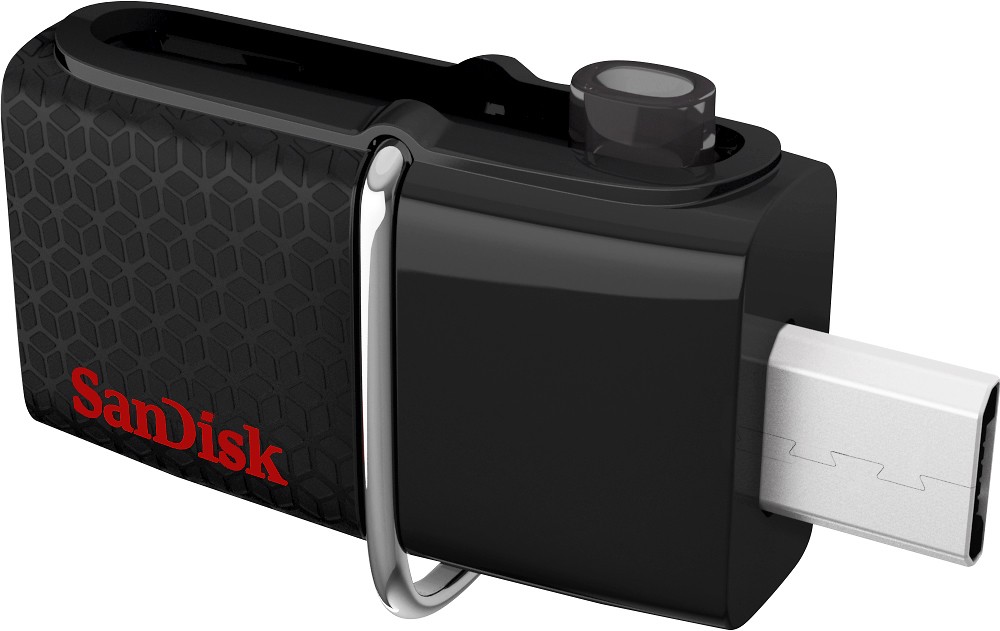 |
Solution: thanks to https://discuss.howtogeek.com/t/how-can-i-format-a-128gb-usb-stick-to-fat32/3934/13 for helping with this solution.
after plugging in USB flash drive to a computer running windows
open a CMD window (press windows + R)
type CMD (command prompt window opens)
open a CMD window (press windows + R)
type CMD (command prompt window opens)
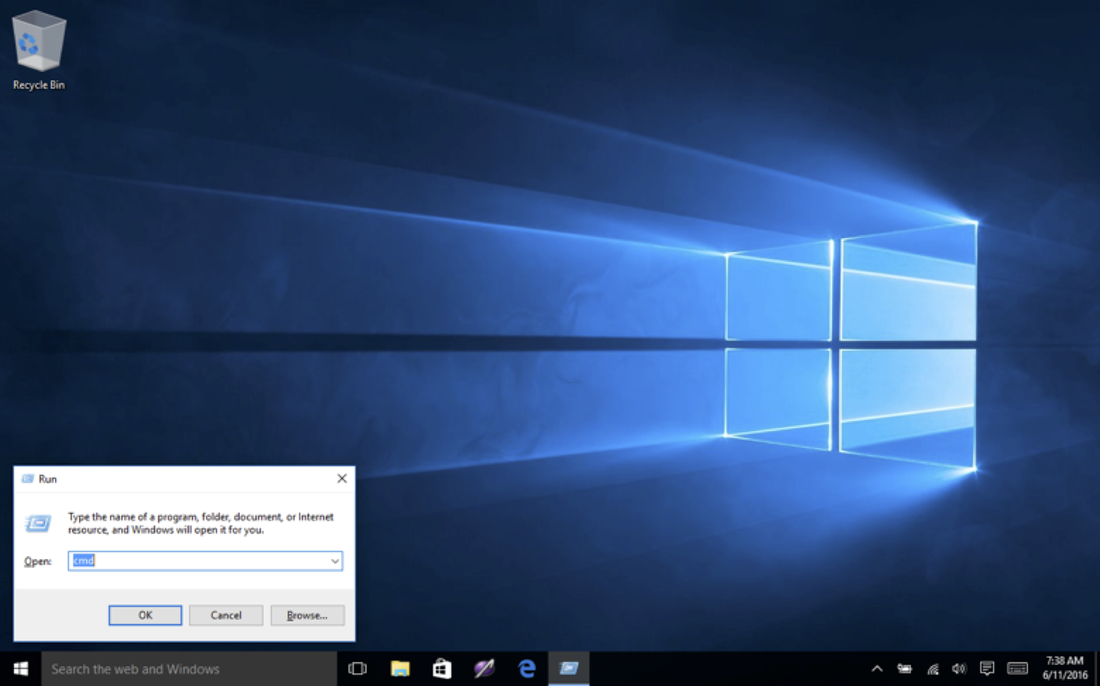
in DOS run "diskmgmt.msc"
in DOS run "diskpart.exe"
New window opens.
In new window prompt is "DISKPART"
In DISKPART run "rescan"
In DISKPART run "list disk”
in DOS run "diskpart.exe"
New window opens.
In new window prompt is "DISKPART"
In DISKPART run "rescan"
In DISKPART run "list disk”
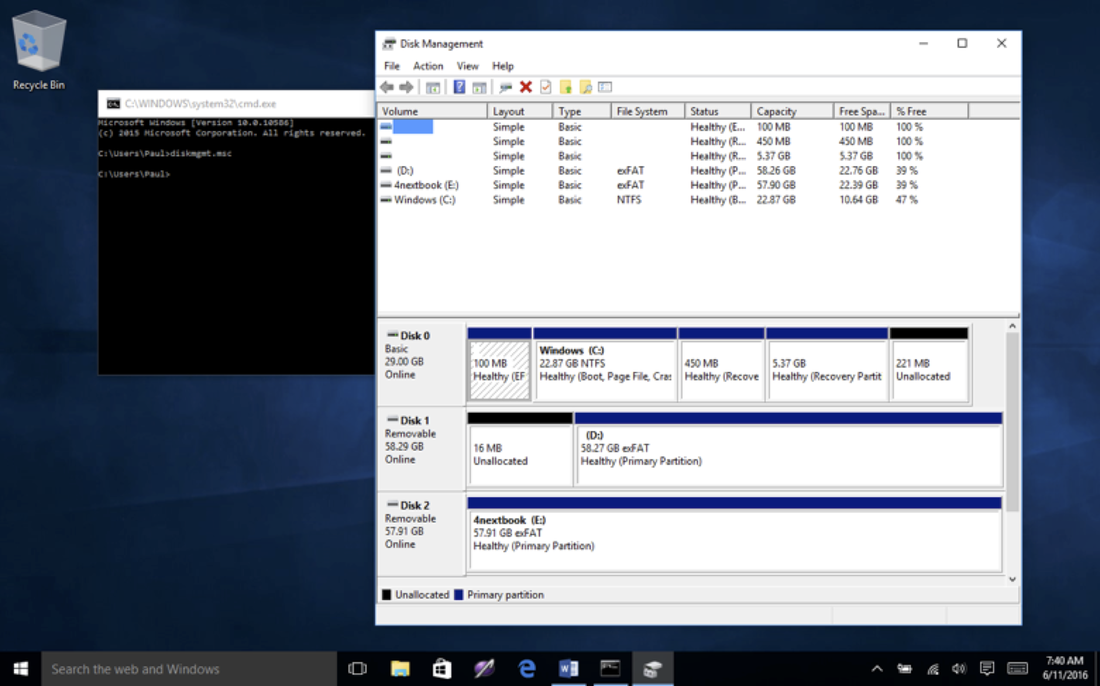
Figure out which disk is having the problems (in my case it was disk 2)
In DISKPART run "select 2” (or whatever disk is problematic)
In DISKPART run "CLEAN" should get msg "DiskPart succeeded in cleaning the disk."
Now check the Disk Management window for a "Disk 2" Removable 57.91 GB on line.
Black bar on entire Disk 1 as 57.91 GB unallocated.
In DISKPART run "create partition primary"
Should get msg: "DiskPart succeeded in creating the specified partition”
Now check the Disk Management window for a "Disk 2" Removable 57.91 GB on line
Blue bar on entire Disk 2 as (E “57.91 GB exFat Healthy (Primary Partition)".
Right Click in blue bar space of disk 2 (E in "Disk Management" window.)
Select FORMAT
In DISKPART run "select 2” (or whatever disk is problematic)
In DISKPART run "CLEAN" should get msg "DiskPart succeeded in cleaning the disk."
Now check the Disk Management window for a "Disk 2" Removable 57.91 GB on line.
Black bar on entire Disk 1 as 57.91 GB unallocated.
In DISKPART run "create partition primary"
Should get msg: "DiskPart succeeded in creating the specified partition”
Now check the Disk Management window for a "Disk 2" Removable 57.91 GB on line
Blue bar on entire Disk 2 as (E “57.91 GB exFat Healthy (Primary Partition)".
Right Click in blue bar space of disk 2 (E in "Disk Management" window.)
Select FORMAT
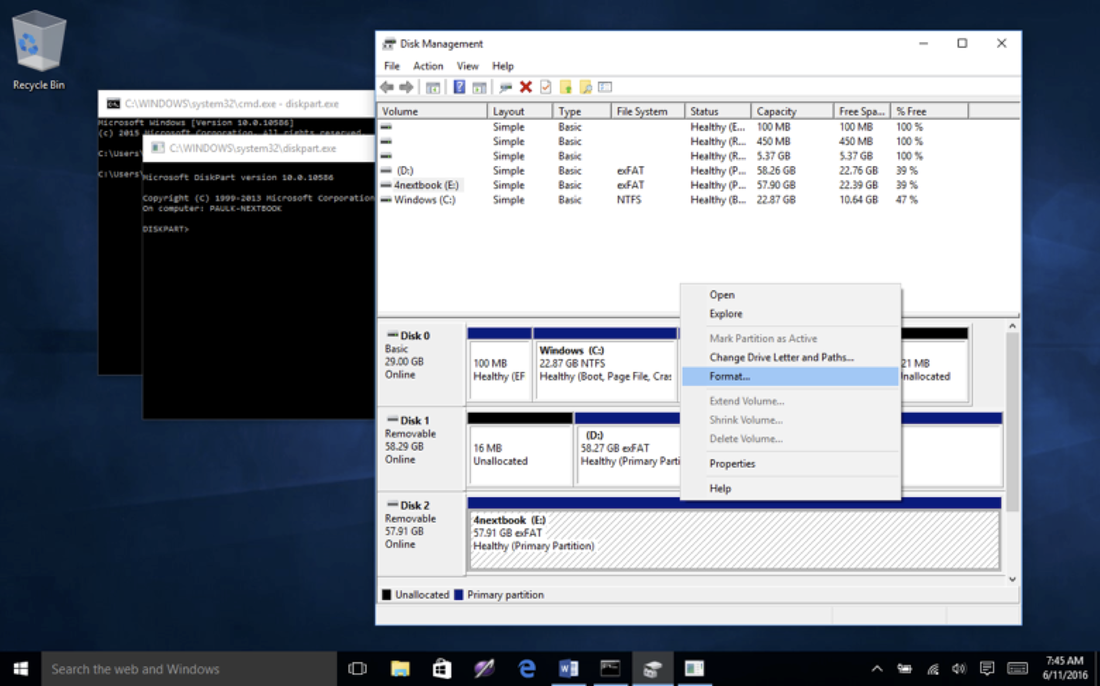
New window opens to FORMAT E: fill in as you like :
Volume label: “(insert title here)”
File system: "NTFS" or "exFAT"
Allocation unit size: "Default"
check "Perform a quick format"
click "OK" Window opens to make sure so just hit "ok" again.
Now check the Disk Management window for a "Disk 2" Removable 57.91 GB on line
Blue bar on entire Disk 1 as (E “57.91 GB exFat Healthy (Primary Partition)".
Close and Exit DISKPART> EXIT
Exit Disk Management
Exit CMD if it is still running
Hopefully that helps you if you have run into this problem.
Volume label: “(insert title here)”
File system: "NTFS" or "exFAT"
Allocation unit size: "Default"
check "Perform a quick format"
click "OK" Window opens to make sure so just hit "ok" again.
Now check the Disk Management window for a "Disk 2" Removable 57.91 GB on line
Blue bar on entire Disk 1 as (E “57.91 GB exFat Healthy (Primary Partition)".
Close and Exit DISKPART> EXIT
Exit Disk Management
Exit CMD if it is still running
Hopefully that helps you if you have run into this problem.

 RSS Feed